How-to guide

Change your homescreen

Follow the instructions below to change the homescreen on your device:

Settings
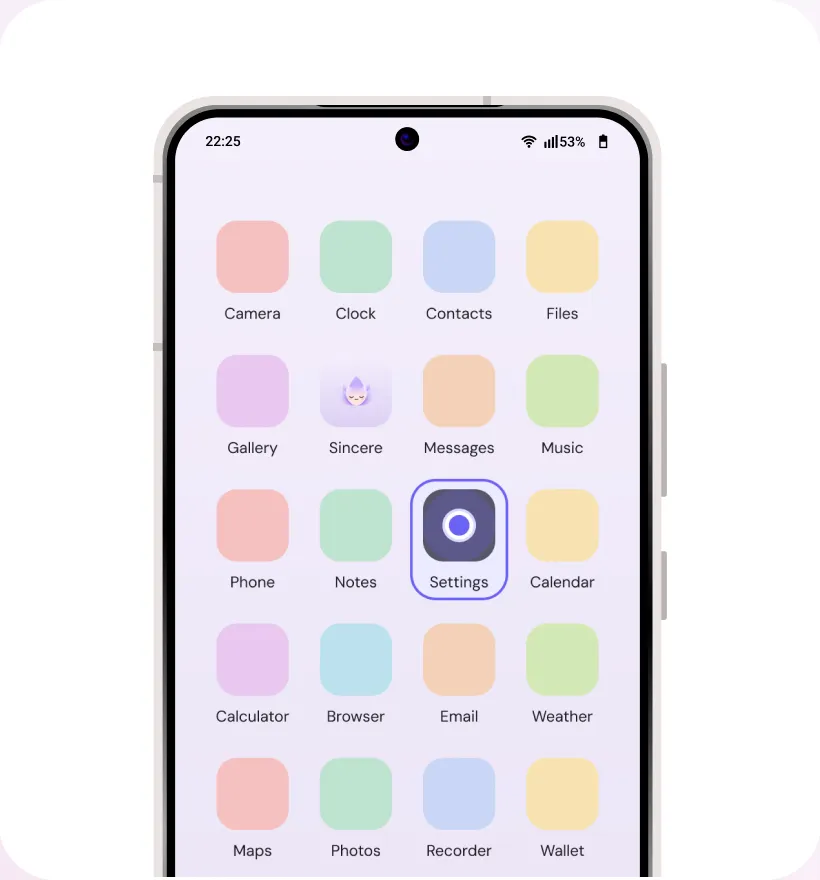
  1. Home screen with the Settings app highlighted

    Step 1

    Find the “Settings” app on your device.
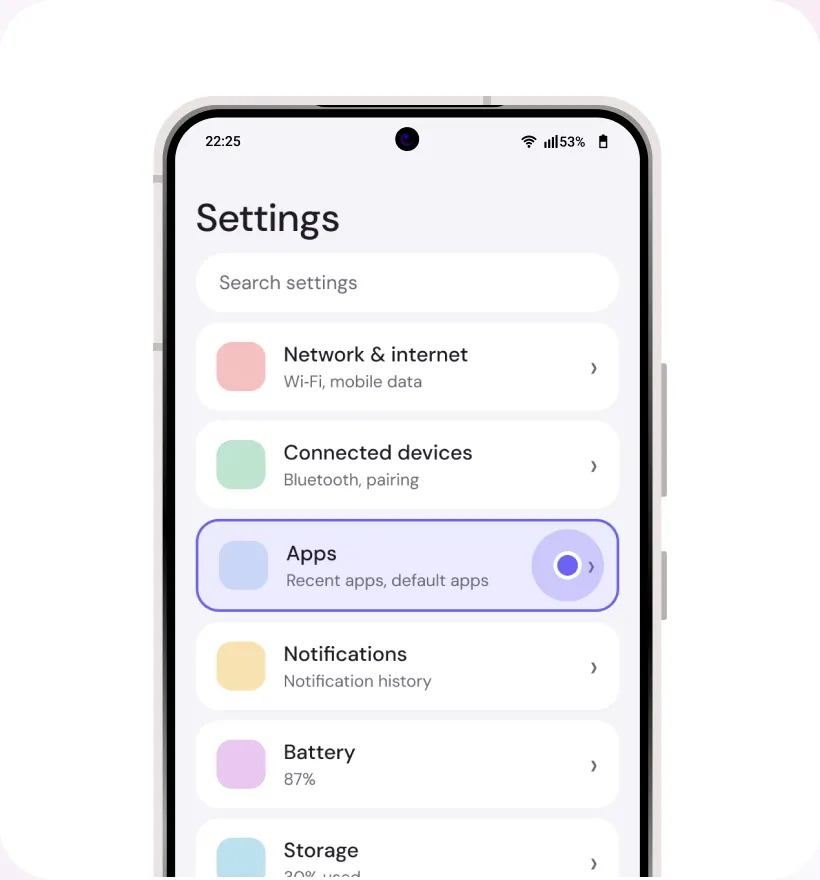
  2. Settings with “Apps” highlighted

    Step 2

    Click on “Apps”

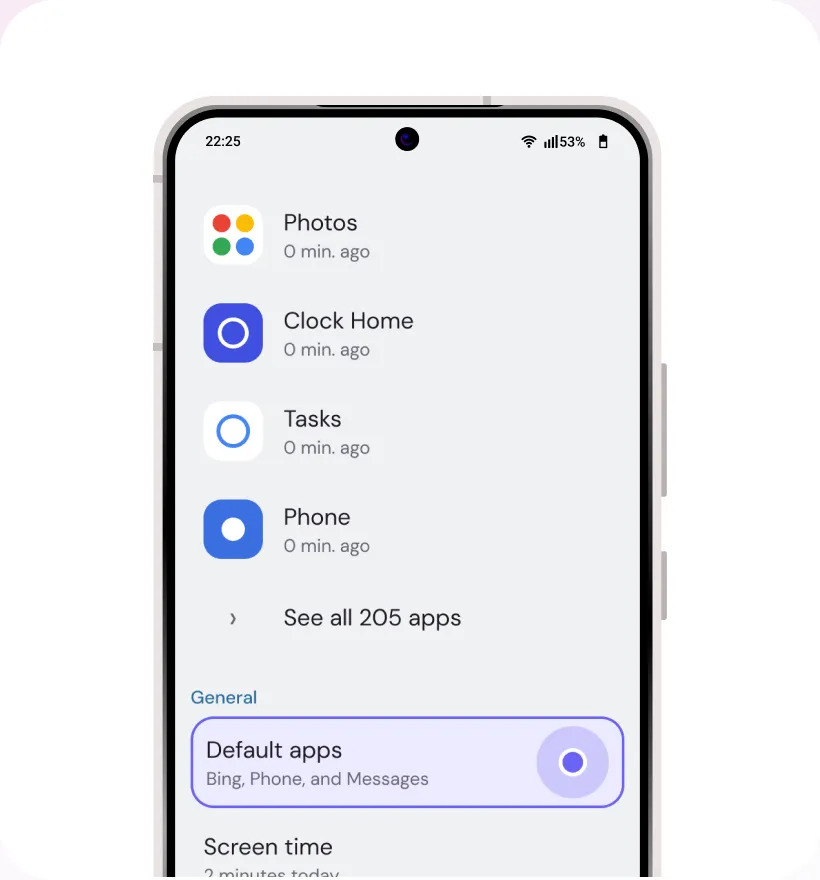
  3. Apps settings with “Default apps” highlighted

    Step 3

    Click on “Default apps”

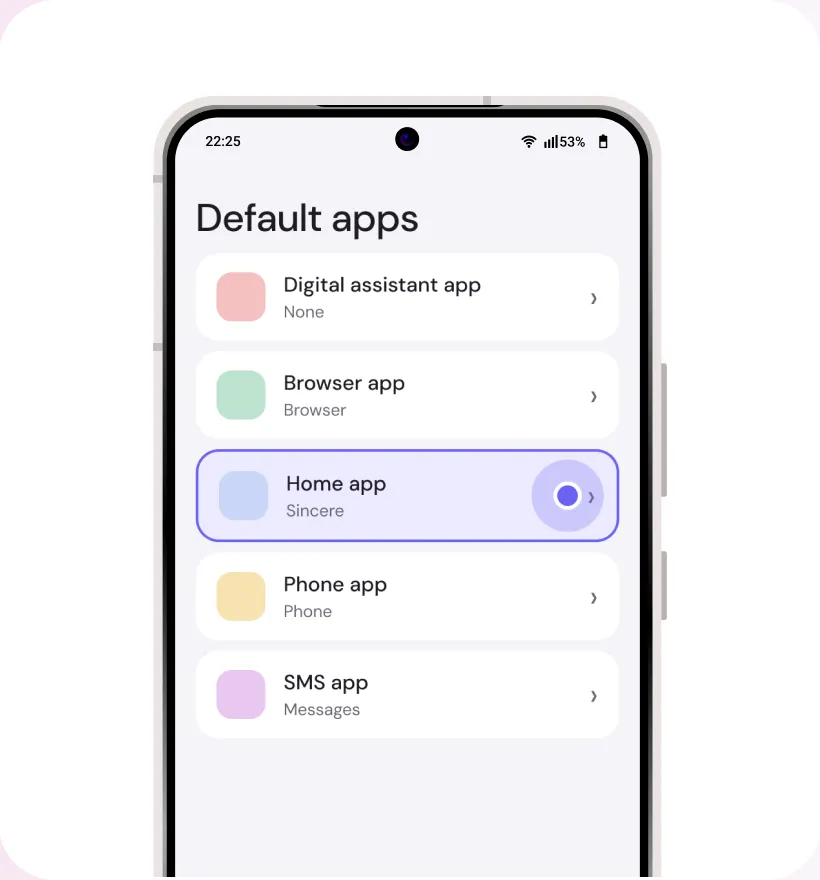
  4. Default apps with “Home app” highlighted

    Step 4

    Select “Home app”

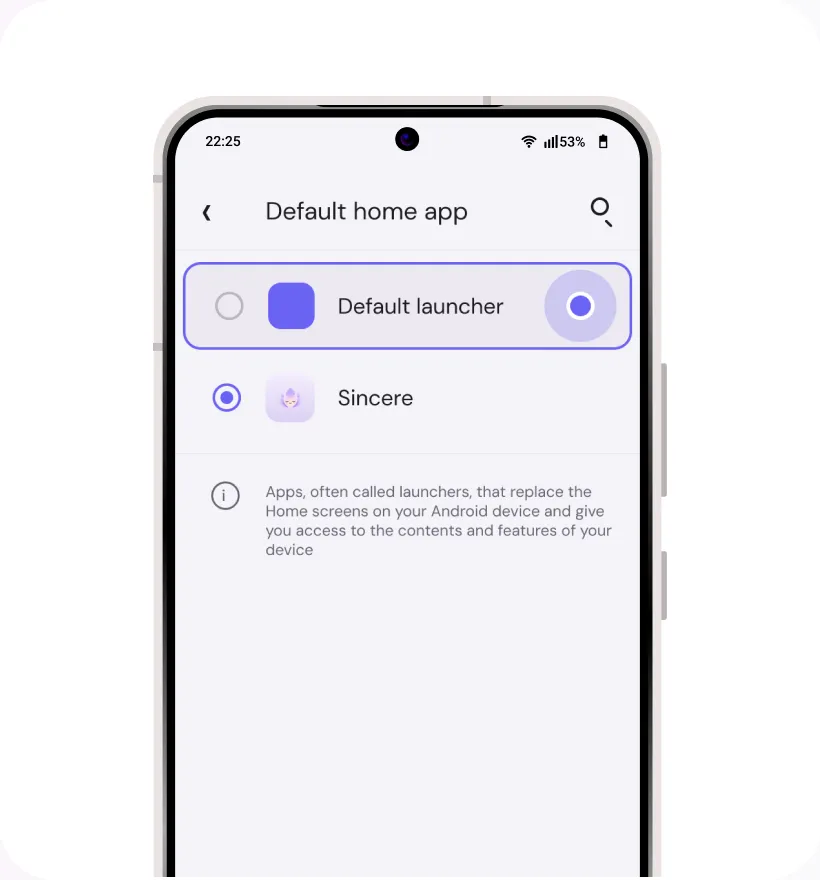
  5. Default home app list with another launcher selected

    Step 5

    Choose your preferred home application to change your homescreen.

Samsung

  1. Home screen with the Settings app highlighted

    Step 1

    Find the “Settings” app on your device.

  2. Settings with “Apps” highlighted

    Step 2

    Go to “Apps”

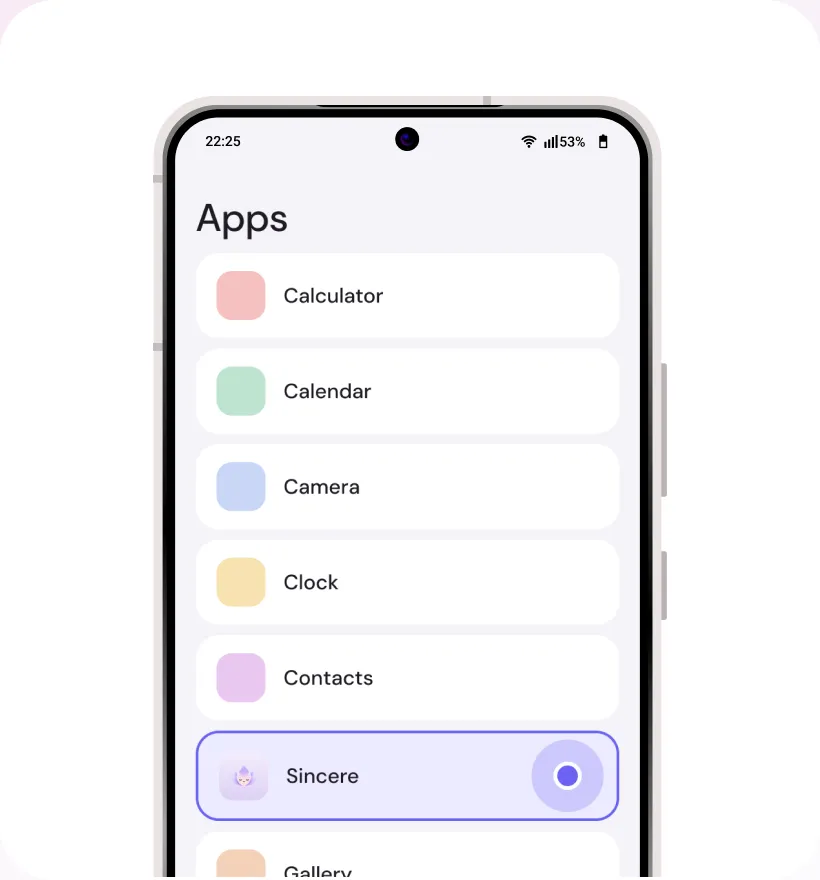
  3. App list with Sincere highlighted

    Step 3

    Click on “Sincere”

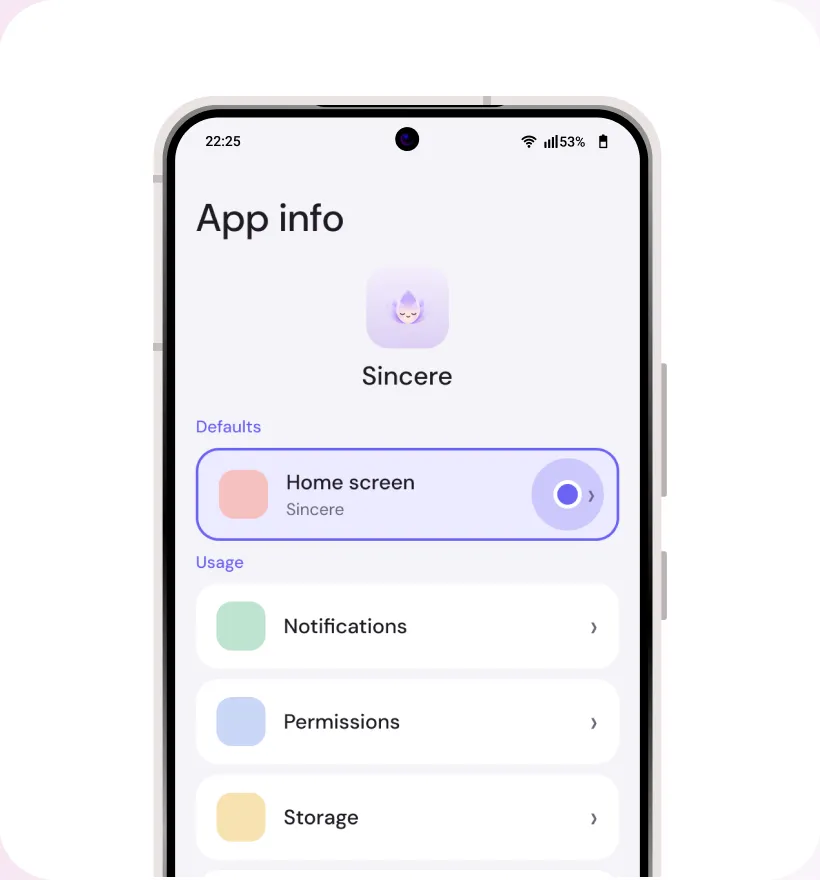
  4. Sincere app info with “Home screen” highlighted under Defaults

    Step 4

    Select “Home screen” under “Defaults”
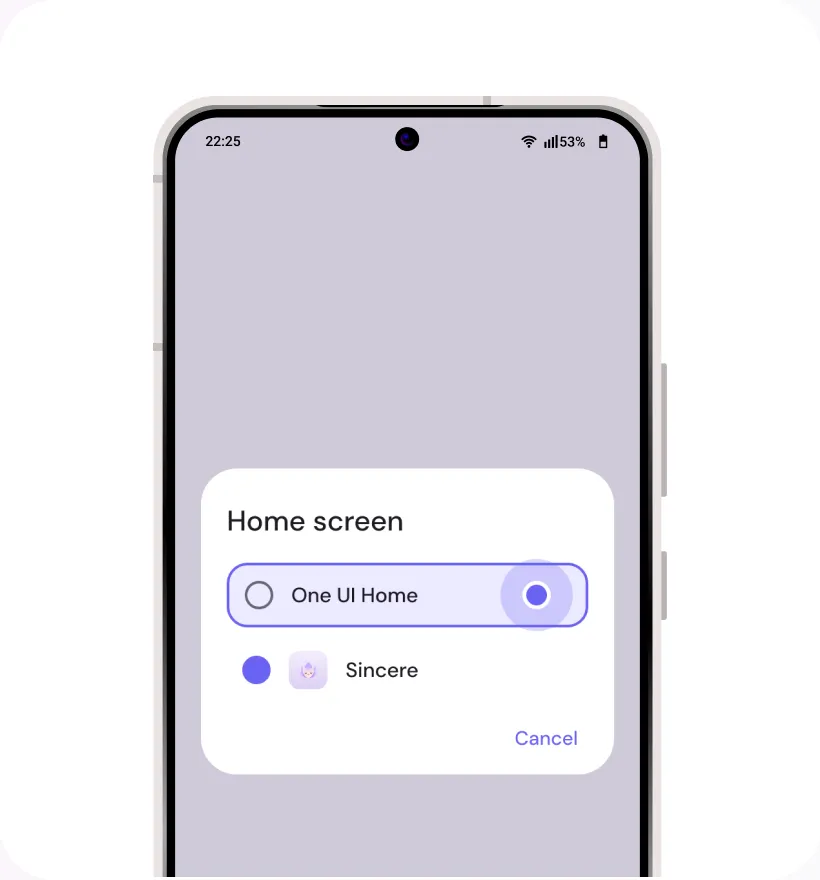
  5. Home screen chooser with “One UI Home” highlighted

    Step 5

    Once opened, tap “One UI Home” to select it as your default home application.

Motorola

  1. Home screen with the Settings app highlighted

    Step 1

    Find the “Settings” app on your device.

  2. Settings with “Apps” highlighted

    Step 2

    Go to “Apps”

  3. App list with Sincere highlighted

    Step 3

    Click on “Sincere”

  4. Sincere app info with “Home screen” highlighted under Defaults

    Step 4

    Select “Home screen” under “Defaults”
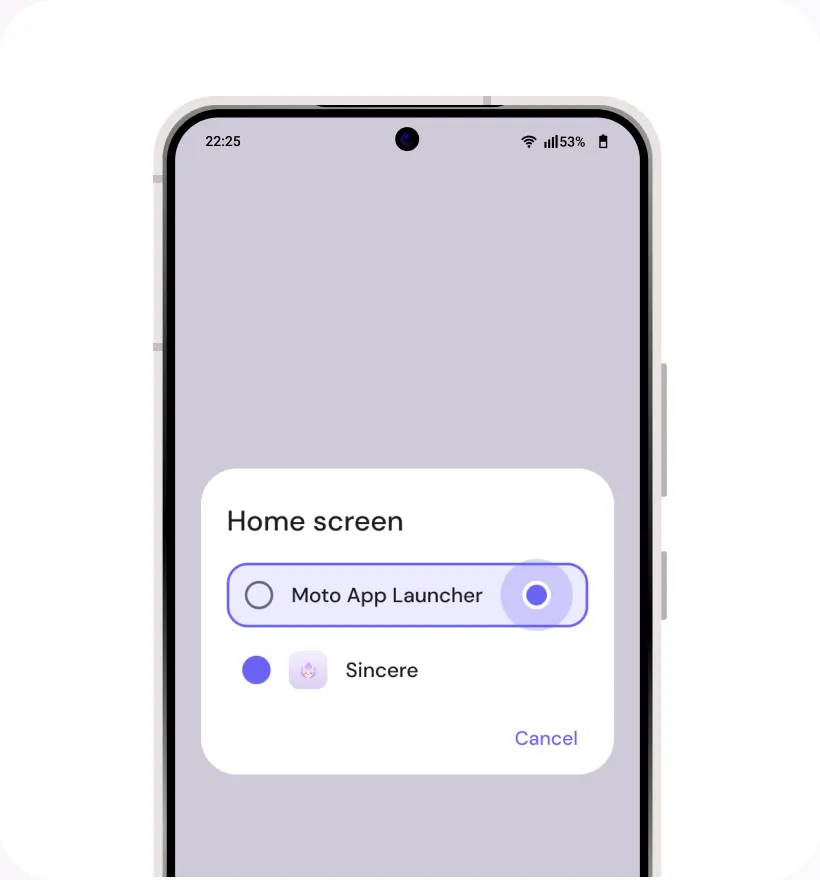
  5. Home screen chooser with “Moto App Launcher” highlighted

    Step 5

    Once opened, tap “Moto App Launcher” to select it as your default home application.

LG

  1. Home screen with the Settings app highlighted

    Step 1

    Find the “Settings” app on your device.
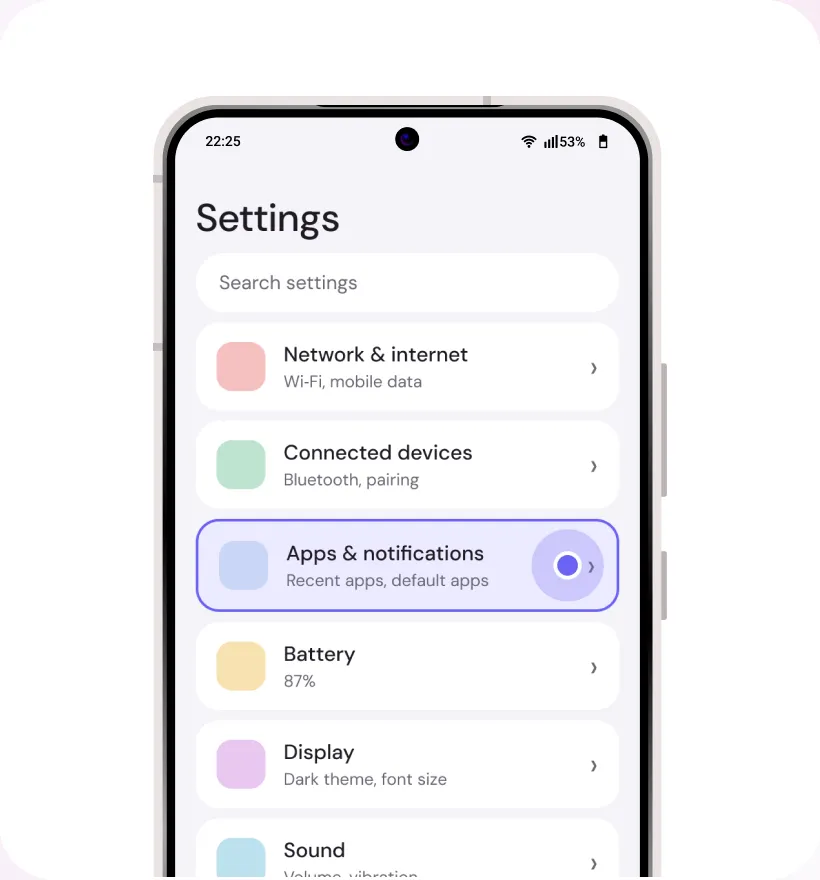
  2. Settings with “Apps & notifications” highlighted

    Step 2

    Go to “Apps & Notifications” under the ‘General’ section.
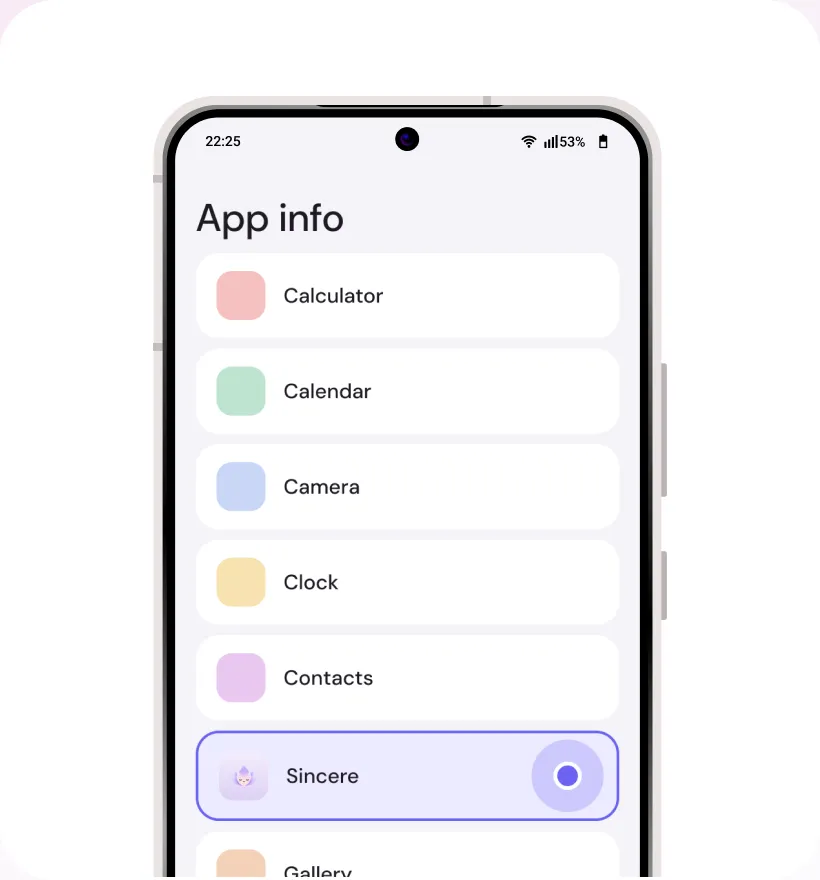
  3. App info list with Sincere highlighted

    Step 3

    Select App Info and scroll down to find “Sincere”
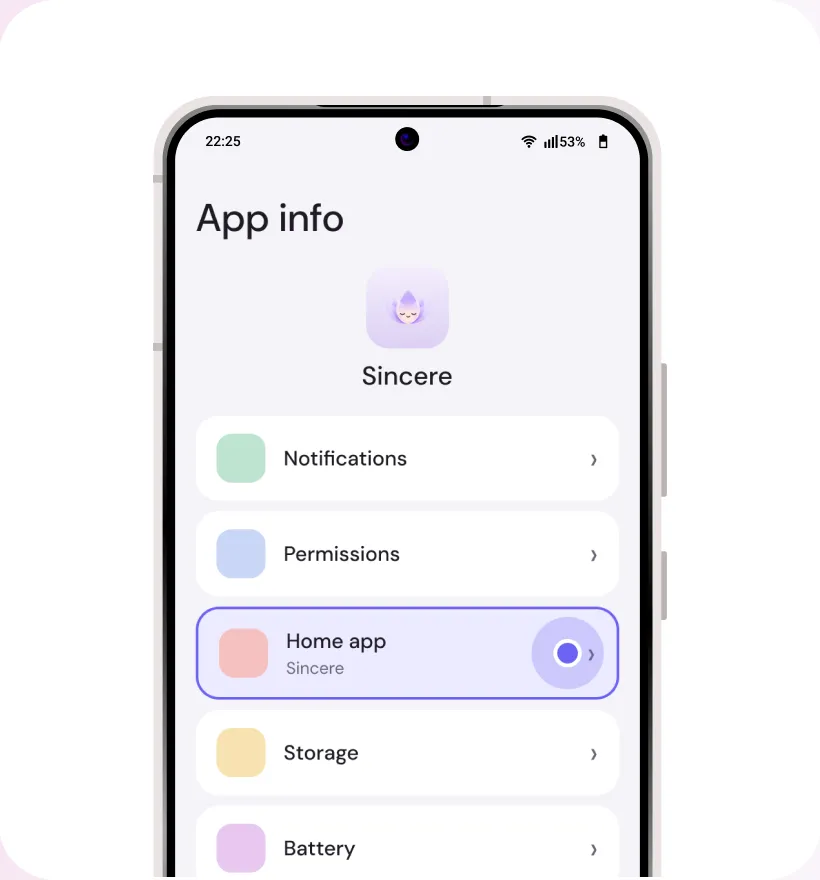
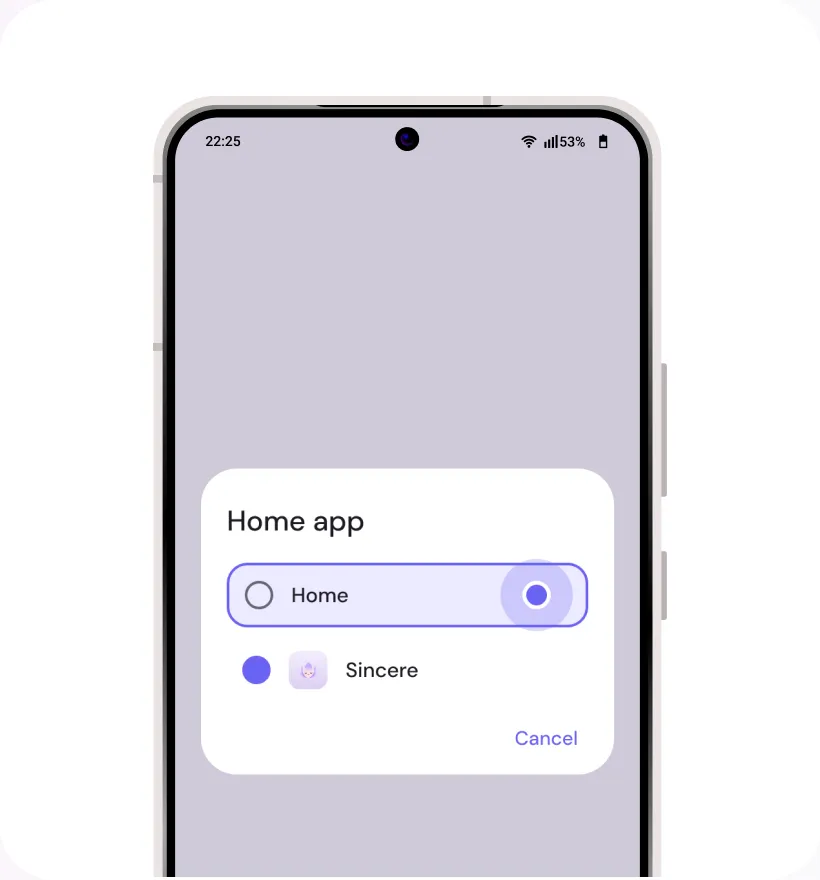
  4. Sincere app info with “Home app” highlighted

    Step 4

    Click on “Home app”

  5. Home app chooser with “Home” highlighted

    Step 5

    Once opened, tap “Home” to select it as your default home application.